projsync keeps a project’s folder identical on two disks, a fast working SSD and a media drive, and moves its Final Cut Pro library between them whole. It does for any project what the course, lib-in and lib-out functions did for COURSE alone. Each project gets a small config file; the commands take the project’s name.
It does two different jobs, because FCP libraries can’t be synced file by file:
| Job | Command | How |
|---|---|---|
| Project folder (footage, exports, docs, transcripts) | projsync sync NAME | Two-way with unison: new and changed files flow both ways, deletions too, and a file changed on both sides is shown as a conflict for you to settle |
FCP library (.fcpbundle) | projsync lib-in NAME / lib-out NAME | One-way, whole: copied to a temporary name, then swapped in, with the copy it replaced kept as .old |
Every command refuses to run while FCP is open, or while a drive is missing.
1. How it works
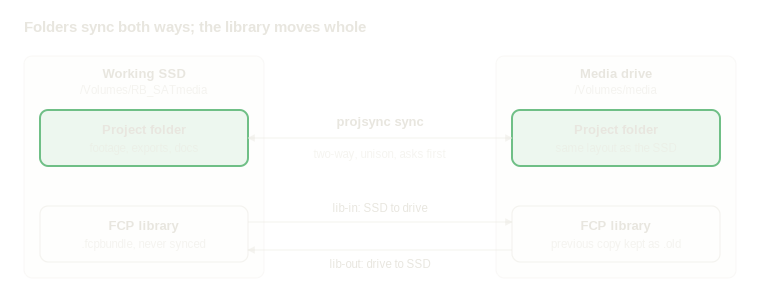
The project folder is the only thing unison touches. The library crosses in one direction at a time, whichever way you send it, and FCP must be closed for all three.
2. Install
projsync is one zsh script. It needs unison for the folder sync; the library copies use macOS’s own ditto.
-
Install unison:
brew install unison. -
Put the script in
~/bin(already on your PATH from~/.zshrc) and make it runnable:mkdir -p ~/bin mv ~/Downloads/projsync ~/bin/projsync chmod +x ~/bin/projsync projsync --version # projsync 0.1.0 -
Give every external drive you sync a permanent ID, once per drive:
projsync id-drive /Volumes/media
projsync id-drive /Volumes/RB_SATmedia
This writes an 8-character ID to a hidden
.drive_idfile at the drive’s top level. A drive that already has one (the media drive does, from COURSE) keeps it.
Why the IDs matter: your drives share names. Two different drives both mounted as /Volumes/media look like the same folder to unison, and it would treat files missing from the second drive as deletions to copy back. With an ID per drive, unison keeps a separate record for each pairing, so plugging in a different drive starts a fresh comparison instead.
3. Setting up a project
projsync new NAME writes a config at ~/.config/projsync/NAME.conf and opens it in your editor ($EDITOR, or nano). The name is how you’ll refer to the project from then on: letters, digits, ., _ and -.
projsync new MyCourseFill in the paths. All must be absolute.
# The project folder on each side. Same layout inside both.
SSD_ROOT="/Volumes/RB_SATmedia/MyCourse"
DRIVE_ROOT="/Volumes/media/MyCourse"

# Optional: the FCP library, copied whole by lib-in / lib-out.
LIB_SSD="/Volumes/RB_SATmedia/Libraries/MyCourse_v1_rb.fcpbundle"
LIB_DRIVE="/Volumes/media/MyCourse/fcp_libraries/v1/master-libraries/MyCourse_v1_rb.fcpbundle"

# Optional: more things sync should skip
IGNORE=(
  "Path exports/v1/audio_for_transcripts"
  "Name *.tmp"
)

# Optional, advanced: pin unison's archive name
UNISON_HOSTNAME=""| Setting | Required | Meaning |
|---|---|---|
SSD_ROOT | yes | The project folder on the working disk. Can be on the internal drive too |
DRIVE_ROOT | yes | The same project folder on the media drive |
LIB_SSD, LIB_DRIVE | for lib-in/lib-out | Where the library sits on each side. The library can live outside the project folder, as the COURSE library does on the SSD |
IGNORE | no | Extra unison patterns. Path is one folder or file relative to the root; Name matches a name anywhere |
UNISON_HOSTNAME | no | Leave empty. Used only to carry an existing unison history across (see section 6) |
Sync already skips, without being told: every .fcpbundle and its .old/.incoming copies, .DS_Store, ._* files, the drive ID, and the hidden macOS folders (.Spotlight-V100, .fseventsd, .Trashes, .TemporaryItems).
If one side doesn’t exist yet (a new SSD copy), create the empty folder and the first sync fills it:
mkdir -p "/Volumes/RB_SATmedia/MyCourse"
projsync check MyCourse
4. Everyday use
| Command | What it does |
|---|---|
projsync list | Lists your configured projects |
projsync check NAME | Reports on drives, IDs, both folders, both libraries and FCP. Changes nothing; exits 1 if anything blocks a sync |
projsync sync NAME | Compares the two folders, shows every change, and asks before copying anything |
projsync sync NAME -y | Applies every non-conflicting change without asking. Conflicts are skipped and listed for a later interactive run |
projsync lib-in NAME | Copies the library from the SSD to the drive |
projsync lib-out NAME | Copies the library from the drive to the SSD |
projsync edit NAME | Opens the config |
projsync id-drive VOLUME | Gives a drive its ID (once per drive) |
In an interactive sync, the SSD is the left column and the drive the right. unison proposes a direction for each change and waits on each line:
| Key | Meaning |
|---|---|
Return or f | accept the proposed direction |
> | copy SSD to drive |
< | copy drive to SSD |
/ | skip this one for now |
d | show the difference (text files) |
q | quit without changing anything |
After the last item it asks “Proceed with propagating updates?”; y applies them. A conflict (<-?->) has no default: pick a side or skip it.
A typical day working off the SSD:
# morning: bring the SSD up to date
projsync check MyCourse
projsync lib-out MyCourse     # only if the library was last edited from the drive
projsync sync MyCourse

# … edit in FCP …

# evening: quit FCP, then send everything back
projsync lib-in MyCourse
projsync sync MyCourse
5. Safety rules it enforces
| Rule | Why |
|---|---|
| Refuses while Final Cut Pro is running | FCP writes into the library and caches continuously; copying mid-write gives a corrupt library |
| Refuses if a drive isn’t truly mounted | A leftover empty /Volumes/media folder after an unclean eject looks like an empty drive, and syncing against it would read as “delete everything”. projsync checks the folder is a real mount, not a stray directory |
| Refuses a drive with no ID | Without one, two same-named drives would share unison’s history (section 2, step 3) |
Never syncs a .fcpbundle | A library is thousands of database files that only make sense together. A file-by-file merge from two sides breaks it |
| Copies libraries to a temp name first | If the copy fails partway, the destination library is untouched |
Keeps the replaced library as .old | One undo for a copy in the wrong direction. Only the latest .old is kept, so check it before the next copy |
| Stops on big deletions | -confirmbigdel makes unison halt if one side appears to have lost everything |
| Asks before every change by default | -y is for when you know what changed; conflicts are never resolved for you |
What it doesn’t protect against: editing the same library on both sides between copies. lib-in and lib-out overwrite whole; there’s no merge. Keep one rule: the library is edited on one disk at a time, and you move it before switching.
Wrong-direction library copy, undone:
cd "/Volumes/media/MyCourse/fcp_libraries/v1/master-libraries"
rm -rf MyCourse_v1_rb.fcpbundle
mv MyCourse_v1_rb.fcpbundle.old MyCourse_v1_rb.fcpbundle
6. Moving a project off hand-written sync functions
COURSE moved to projsync on 1 Oct 2026, and its unison history carried over: the first projsync sync COURSE reported “Nothing to do: replicas have not changed since last sync.” These are the steps that worked, for any other project that has its own unison profile and zsh functions.
-
List what the old profile sets:
grep -E '^(root|ignore)' ~/.unison/course.prf grep -vE '^(root|ignore|#|$)' ~/.unison/course.prf -
Map each old setting onto projsync:
In the old profile or function In projsync root = …(two lines)SSD_ROOTandDRIVE_ROOT. Their order doesn’t affect the history, but the columns follow projsync: left is always the SSDignore = Name *.fcpbundle,.DS_Store,.Spotlight-V100,.fseventsd,.TemporaryItemsbuilt in; leave them out any other ignore = …lineone quoted entry in IGNORE, without theignore =times = true,perms = 0built in batch = falsethe default; -yturns batch on for one runmaxthreads = 8dropped; unison’s own default applies UNISONLOCALHOSTNAME="drive$id"in the functionUNISON_HOSTNAME="drive<ID>", typed as a fixed string (driveAfor the media drive) -
Write the config from the shell rather than pasting into the editor. The COURSE config as it stands:
cat > ~/.config/projsync/COURSE.conf <<'EOF'
SSD_ROOT="/Volumes/RB_SATmedia/COURSE_project"
DRIVE_ROOT="/Volumes/media/COURSE_project"
LIB_SSD="/Volumes/RB_SATmedia/Libraries/COURSE_v1_rb.fcpbundle"
LIB_DRIVE="/Volumes/media/COURSE_project/fcp_libraries/v1/master-libraries/COURSE_v1_rb.fcpbundle"
IGNORE=(
  "Path assets/raw_footage"
  "Name {Render Files}"
  "Name {Transcoded Media}"
  "Name {Analysis Files}"
)
UNISON_HOSTNAME="driveA"
EOF
The
Path assets/raw_footageline is the one not to miss: without it the first sync would copy every camera file between the drives. -
Give any drive without an ID its ID, then check and run one interactive sync with FCP closed:
projsync id-drive /Volumes/RB_SATmedia
projsync check COURSE
projsync sync COURSE
“Nothing to do”, or only the files changed since the last old-style sync, means the history carried over. A list of hundreds of files means it didn’t: press
qand compare the roots and hostname with the old profile before approving anything. -
Swap the old functions for aliases. Delete the old block first: zsh expands an alias anywhere its name appears, so an alias named
coursewould break a latercourse() {definition in the same file.cp ~/.zshrc ~/.zshrc.bak sed -i '' '/^# --- COURSE sync ---$/,/^# --- end COURSE sync ---$/d' ~/.zshrc grep -n 'COURSE\|lib-in\|lib-out\|_lib_move' ~/.zshrc # should print nothing cat >> ~/.zshrc <<'EOF' # --- project sync (projsync) --- alias course='projsync sync COURSE' alias lib-in='projsync lib-in COURSE' alias lib-out='projsync lib-out COURSE' EOFThen open a new Terminal window (or run
exec zshon its own line) and check withtype course lib-in lib-out.~/.zshrc.bakkeeps the old functions. The old~/.unison/course.prfis no longer read and can go; keep the rest of~/.unison, which holds the sync history.
For every new project, leave UNISON_HOSTNAME empty.
7. Troubleshooting
| Message | Fix |
|---|---|
quit Final Cut Pro first | Quit FCP (not just close the library) and run again |
/Volumes/X is not mounted | Plug in the drive. If Finder shows it as media 1, eject every drive called media, delete the stray /Volumes/media folder if one remains, and remount |
has no ID yet | projsync id-drive /Volumes/X |
… does not exist | One side’s project folder is missing. Check the path, or mkdir -p it for a new copy |
unison not installed | brew install unison |
| unison stops on a “big deletion” | One side looks emptied. Check the right drive is mounted before you agree to anything |
| Thousands of changes on a first sync | Normal when two copies were never synced before. Identical files are only recorded, not copied, but the first scan of a large project takes a while |
set LIB_SSD and LIB_DRIVE | Add the library paths to the config (projsync edit NAME) |
copy failed; destination untouched | Usually a full disk. Free space and run again; nothing was replaced |
Never paste projsync new or projsync edit together with the commands after it. The editor opens, and everything queued behind it runs the moment you close it, before your config is filled in. The checks stop it doing harm, but the output is confusing. The same goes for exec zsh: anything pasted after it is dropped by the new shell.